
Oracle continues to add AI to its SaaS offerings including Oracle EPM products. They have been releasing AI features since 2024. Just to recap on some of the EPM AI features currently available:
- IPM Insights to generate a narrative summary on an insight or group of insights
- PCM Agent to assist with workflow tasks
- Narrative Reporting generative AI features for commentary within report packages
- Advanced Predictions in Planning and FreeForm
- Predictive Cash Forecasting
- As of the 12.25 release, Oracle added the EDM application registration assistant to generate properties
I had a chance to test drive the EDM GenAI feature while building a prototype for a customer recently and it is amazing. This is my “Tom Cruise on the couch” moment for EDM.
<EDIT> I didn’t realize that was over 20 years ago, so some people may not get that reference. Please see https://knowyourmeme.com/memes/tom-cruise-jumps-on-oprahs-couch.
What’s the big deal?
If you’re not setting up a new application and are in maintenance mode in your applications, maybe you don’t even care about this update. But, if you’re prototyping a new app or thinking about expanding your EDM application into other master data domains like products, customers, vendors, things like that, this update saves a ton of time.
Building a custom application can involve some tedious work. Setting up each and every property takes a couple of minutes; you have to enter in the property name, identify the data type for the property, etc. But, with this generative AI application registration assistant, it can evaluate a .csv file of a bucket load of properties and the first 10 rows of data to identify the property names and data types for you. This came in handy for me with a customer’s data set that had 173 properties.
Enable AI
To get started using Generative AI in EDM, the first thing you need to do is enable the feature in the application Settings. Just check the box. No restart of the service is needed. That’s literally all there is to do.

Now that AI has been turned on, you’d expect some confetti on the screen or something, but nothing.
Is this thing on?
So, now that we have enabled AI how do I use this feature? Oracle’s docs say:
To generate properties using a sample file, you must be on the Properties for Dimension Node Type page. You access this page when you perform any of the following tasks:
-
Add or modify a node type, see Adding or Modifying a Node Type for a User Defined Dimension.
-
After you add an existing property, create a custom property, or modify a property.
Maybe it’s my midwestern, plain-speaking roots or something, but I couldn’t decipher that. So, my next step was to try and play with it to figure it out.
I went into the Node Type and played around in there with properties but didn’t see anything different.
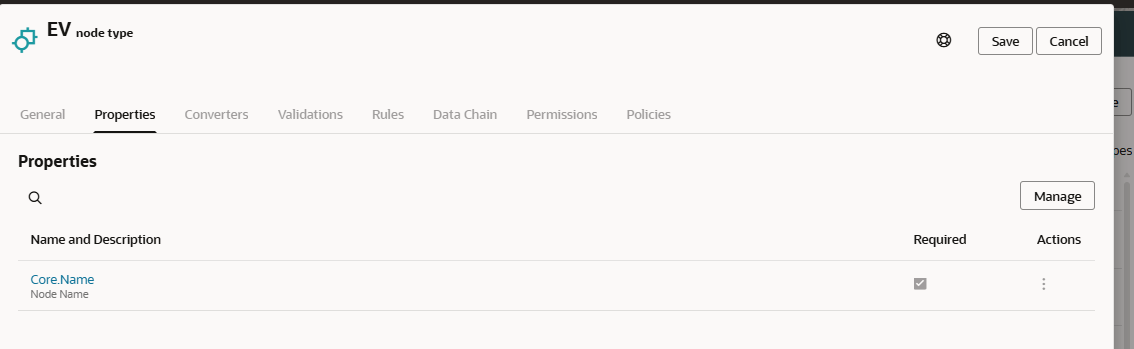
So, I tried to add a new Node Type from the Node Type card in the Information Model, but that didn’t allow me do anything different in the Properties window either.
Then, I went into the application by selecting Modify Registration and navigated into my Node Type that I was trying to edit.

Success!
I already gathered a data file with electric vehicle data (thanks Uncle Sam), so with that file in hand, I clicked on Generate to add my custom properties.


I clicked the “Drag and Drop” button and it allowed me to browse to find my EV file. The GenAI assistant reads the headers and the data rows to determine the Property Name and Data Type as well as suggest what level (Node or Relationship) the property should have. If you don’t like what it selected, click the Edit button to change the values.

In my case, I wanted my VIN property to be the Name. I tried to tell the application this is my Name, but as you may have noticed in the earlier pictures, the Name property already exists. In this case, I used the Actions “delete” icon to remove that property.
Next, I noticed things like Postal Code and Model Year were set to Integer. I didn’t want the system to try and put commas as thousands separator in those fields, so I changed them to Numeric String. Of course, with any AI usage, there should be a human in the loop to ensure that AI is handling things properly.

After clicking Save, and finishing up my Modify Registration wizard, I could see the properties were built in my Node Type.

Lessons Learned
File preparation can go a long ways in saving you time fixing some AI mistakes here. You want to have 10 or so rows of sample data so the system can determine the Data Type and Level for the properties. Your headers should be labeled how you want them to appear in EDM and you can specify your property order in the file as well. Adding prefixes to your properties and clustering them together might make it easier when you create property groups as well.
As you can see, this GenAI feature is assistive, not automation. It provided a great deal of time savings to me as a developer, but I can’t blindly trust the system to choose the correct data types for each property. This feature accelerates setup, but doesn’t replace design. It’s still important to define naming standards as you can see with the long names from my data file.
While this is dramatically faster than building all properties from scratch, we still need to plan for multiple refinement cycles and time to adjust those AI-generated properties.
This new GenAI assistant is ideal for new applications or domain onboarding in EDM. This could help out with new implementations, when doing M&A activity, re-platforming enterprise data, or metadata rationalization projects.